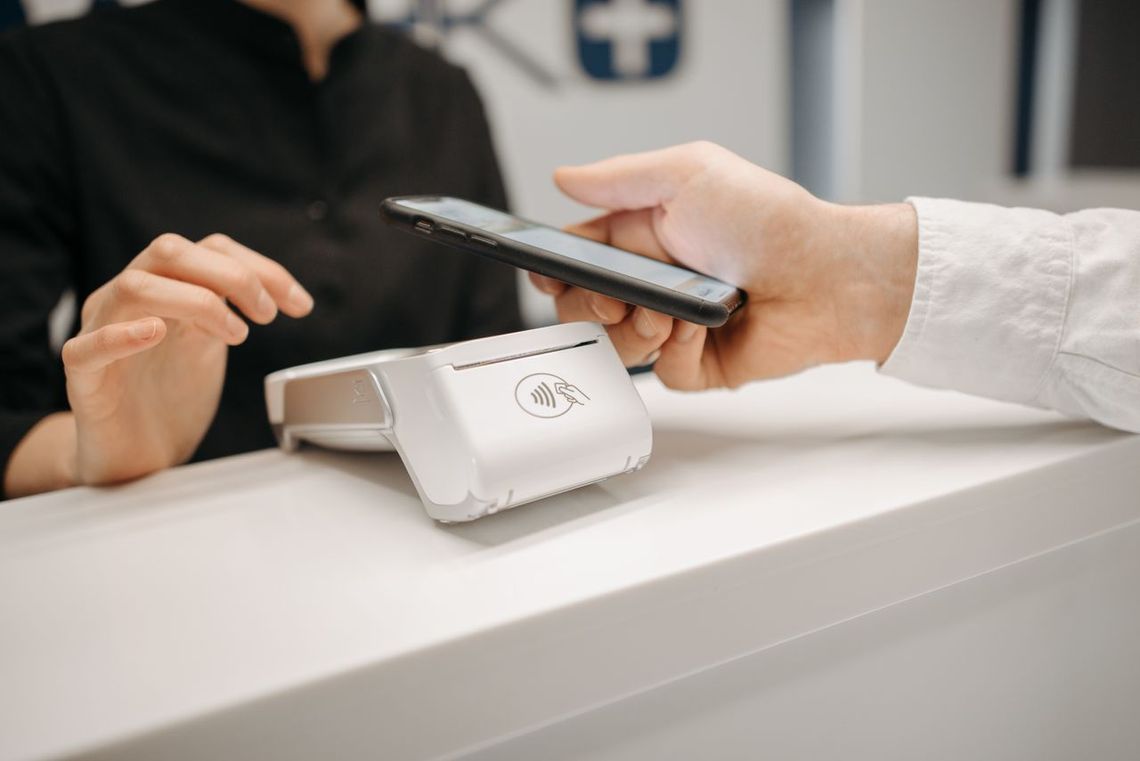

Digital payment methods have rapidly become the norm in everyday transactions, often both at home and abroad. You even have a lot of providers to choose from, with some similar-sounding names like Apple Cash and Apple Pay. If you’ve ever wondered about the difference between Apple Cash and Apple Pay, the answer’s simple: Apple Cash lets you send and receive money2, while Apple Pay allows you to make payments3 in stores, within apps, and online.1
The two are closely linked that way (most notably that funds received via Apple Cash can be used to make purchases using Apple Pay), and both services are integrated into the Apple ecosystem, but they serve different purposes. This article takes a closer look at how Apple Pay and Apple Cash work and when to use them.
Apple Cash vs. Apple Pay: Key differences
Here’s a quick overview of Apple Cash vs. Apple Pay4, considering their features and what else you can do if you use them.
Feature | Apple Cash | Apple Pay | ||
|---|---|---|---|---|
Main purpose | Send, receive, store, and spend money. | Make secure digital payments using linked cards or Apple Cash. | ||
Person-to-person transfers | Yes. Send and receive money through Messages, Wallet, or Tap to Cash. | No. Not designed for direct person-to-person transfers. | ||
In-store payments | Depends. Apple Cash can be used at merchants accepting Apple Pay, subject to account and transaction eligibility. | Yes, at contactless payment terminals. | ||
Online purchases | Yes, through Apple Pay or its virtual card number. | Yes, on supported websites and in apps. | ||
Money storage | Yes. Holds a balance in the Apple Cash card in Wallet. | No. Stores payment cards, not a cash balance. | ||
Bank transfers | Yes. Transfer Apple Cash balance to an eligible bank account. | No. Payments are processed through linked payment cards. | ||
Instant transfers | Yes, with an eligible debit card (fees may apply). Standard bank transfers typically take 1–3 business days. | Not applicable. It is a payment service, not a money-transfer account. | ||
Availability | Account setup and person-to-person transfers are U.S.-only, eligible registered accounts can be used for purchases abroad. | Available in 90+ countries and regions. | ||
Compatible devices (note that compatibility and individual features vary by device.) | Compatible iPhone, iPad, Apple Watch, and Apple Vision Pro. | Compatible iPhone, iPad, Apple Watch, Mac, and Apple Vision Pro. |
It’s worth noting that both services are integrated into Apple’s ecosystem and do have interactions/overlaps with each other in terms of features, which means that they’re not entirely independent of each other. In many cases, some features of one product can make up for (or enable) features of the other.
What is Apple Cash and how does it work?
To discuss Apple Cash more in depth, it’s best to start with an example. You send $30 to a friend via Messages. They in turn receive the funds in their Apple Cash balance and can then spend them using Apple Pay or transfer them to a bank account. You can consider it a digital money service with a stored balance that works alongside Apple Pay.
Note that you need to meet Apple's eligibility requirements, which include:
Have an eligible Apple account
Be a U.S. resident.
Be at least 18 years old (for an individual Apple Cash account).
Have a compatible Apple device with the latest supported software.
Have two-factor authentication enabled.
Complete identity verification when required.
Apple requires sufficient Apple Cash balance or an eligible debit card to fund a payment. If you’re eligible and can fund payments or transfers, you can use Apple Cash to send money. You can send Apple Cash through Messages, Wallet, or Tap to Cash. Here’s how the first two methods work:
The first is Messages5,6, which was the example above:
Open the Messages app.
Select a conversation with the recipient.
Tap the plus (+) button.
Select Apple Cash.
Enter the amount.
Tap Send and confirm using Face ID, Touch ID, or your passcode, and the money is sent directly to the recipient's Apple Cash account.
The second is Wallet, which is done directly in the app:
Open the Wallet app.
Select your Apple Cash card.
Tap Send or Request.
Choose the recipient.
Enter the amount.
Tap Send and authenticate the payment, which is processed using your Apple Cash balance or an eligible debit card.
Apple Cash also allows you to receive money5 from friends, family, and other eligible users. The process works as follows:
Another user sends money through Messages or Wallet.
The recipient receives a payment notification.
If automatic acceptance is enabled, the payment is accepted automatically.
If manual acceptance is enabled, the recipient opens the Messages conversation and taps Accept.
Once accepted, the money becomes available in the recipient's Apple Cash balance.
Finally, you can spend your Apple Cash balance through Apple Pay, both in physical stores and online on an iPhone with Face ID:
To make in-store purchases
Double-click the iPhone's side button.
Select the Apple Cash card.
Authenticate using Face ID, Touch ID, or a passcode.
Hold the iPhone near the contactless payment terminal.
To make online and in-app purchases
Visit a website or open an app that accepts Apple Pay.
Select Apple Pay at checkout.
Choose Apple Cash as the payment card.
Authenticate the transaction.
All payments are deducted from your Apple Cash balance. Additionally, Apple Cash also has a virtual card number that can be used for eligible purchases where Visa is accepted, which further expands your buying options.
Apple Cash is not a traditional bank account or a credit card, but its services are provided by Green Dot Bank—it still requires identity verification and offers FDIC insurance for eligible balances.
What is Apple Pay and how does it work?
Apple Pay is a service that allows you to make purchases using your Apple devices instead of presenting a physical debit or credit card. Like Apple Cash, it works with the Apple Wallet app, where you can securely add any eligible bank cards. Apple Pay is available in many countries and regions, but the availability of specific cards depends on the issuing bank.
Adding a bank card to your Apple Wallet is relatively straightforward:
Open the Wallet app on your iPhone.
Tap the plus (+) button.
Select Debit or Credit Card.
Tap Continue.
Scan your physical bank card using your iPhone camera, hold the card near your iPhone if supported, or enter the card details manually.
Follow the instructions provided by your bank.
Complete the verification process, which may involve an SMS code, banking app, or other authentication method.
One of the primary benefits of using Apple Pay is that it allows you to pay at stores that have compatible contactless payment terminals. While the exact steps differ depending on which Apple device you use, they’re both easy and simple to complete everyday transactions with. The payment is charged to your selected payment card or Apple Cash balance.
Using an iPhone:
Double-click the iPhone's side button.
Authenticate using Face ID, Touch ID, or the device passcode.
Select the bank card you want to use if you have multiple cards.
Hold the top of your iPhone near the contactless payment terminal.
Wait for the confirmation message or checkmark indicating that the payment is complete.
Using an Apple Watch:
Double-click the side button.
Select your preferred payment card.
Hold the Apple Watch display near the contactless reader.
Wait for the payment confirmation.
Apple Pay also makes online shopping easier by reducing the need to manually enter card information. For example:
On websites
Visit a website that accepts Apple Pay.
Add the desired products to your shopping cart.
Select Apple Pay at checkout.
Review the payment, shipping, and billing information.
Authenticate using Face ID, Touch ID, or your passcode.
Confirm the purchase.
In apps
Open an application that supports Apple Pay.
Select the product or service.
Proceed to checkout.
Tap the Apple Pay payment option.
Choose the preferred bank card.
Authenticate and confirm the transaction.
Apple Pay uses Near Field Communication (NFC3), a short-range wireless technology, to communicate with compatible contactless payment terminals. Because the necessary payment credentials are stored securely on the device, supported in-store transactions can generally be completed without an active Wi-Fi or cellular connection.
Apple Pay supports several U.S. banks and credit unions, although card eligibility depends on the issuer. Apple Pay itself is not a bank account; payments use your linked card or Apple Cash balance.
It’s important to note that while Apple Pay and Apple Cash are both Apple financial services, they serve different purposes. Apple Pay is the payment method7, while Apple Cash is one possible source of money used to make that payment.
Apple Cash vs. Apple Pay: Fees and transfer costs
Apple Cash vs. Apple Pay: Pros and cons
Despite complementing each other, there are significant considerations you have to keep in mind when using either Apple Cash or Apple Pay.
Using Apple Cash generally makes sending and receiving money between friends and family convenient through Messages and Wallet. However, it’s only available in the United States, and instant transfers to eligible debit cards do incur fees. You also need a compatible Apple device and merchants that accept Apple Cash as a valid payment method.
Using Apple Pay provides a convenient, fast, and secure way to make payments in physical stores, online, and within mobile applications, while also being widely available in many countries aside from the United States. The drawbacks are that Apple Pay requires a compatible Apple device and a participating bank or card issuer. Not all merchants accept contactless payments or Apple Pay, especially smaller businesses.
Apple Cash vs. Apple Pay: Which one should you use?
The better option ultimately depends on what you need. Generally, Apple Cash is designed for sending, receiving, and storing money, while Apple Pay is designed for making purchases using digital payment cards.
What do you need? | Better option | Reason | ||
|---|---|---|---|---|
Sending money to friends or family | Apple Cash | Supports direct person-to-person transfers. | ||
Receiving money from another Apple Cash user | Apple Cash | Funds are credited to your Apple Cash balance. | ||
Paying at physical stores | Apple Pay | Supports contactless payments using eligible cards. | ||
Shopping online | Apple Pay | Supports secure checkout without manually entering card details. | ||
Storing and spending a digital cash balance | Apple Cash | Maintains an available balance in Wallet. | ||
Transferring funds to a bank account | Apple Cash | Supports transfers to eligible U.S. bank accounts. | ||
Making purchases internationally | Apple Pay | Works in supported countries and regions, subject to participating issuers and merchants. | ||
Making international money transfers | BOSS Money | Supports transfers to eligible international destinations. |
Choose Apple Cash for person-to-person money transfers and Apple Pay for everyday shopping, in-store purchases, and online payments. The two services can also work together because Apple Cash can be used as a payment source through Apple Pay.
If you need to send money internationally rather than make payments abroad, you’ll need a service designed specifically for international money transfers.
Need to send money internationally? Consider BOSS Money!
Apple Pay and Apple Cash aren’t designed to handle the same needs addressed by international money transfer services. Apple Cash is built for money transfers between eligible U.S. users, while Apple Pay is a payment tool.
Payout options may include bank deposit, cash pickup, or mobile wallet. Delivery timing varies by destination and payment method. You can track real-time transfer status via the BOSS Money app.
FAQ
Sources: all third party information obtained from applicable website as of November 11, 2026
https://www.remitly.com/blog/technology/apple-cash-vs-apple-pay
https://www.apple.com/apple-cash/
https://www.apple.com/apple-pay/
https://www.remitly.com/blog/technology/apple-cash-vs-apple-pay/
https://www.usnews.com/banking/articles/how-to-use-apple-cash
https://wise.com/us/blog/apple-cash-vs-apple-pay
https://www.recharge.com/blog/en-gb/apple-cash-vs-apple-pay-whats-the-difference
https://www.nerdwallet.com/banking/learn/what-is-apple-pay-cash
This article is provided for general information purposes only and is not intended to address every aspect of the matters discussed herein. The information in this article is not intended as specific personal advice. The information in this article does not constitute legal, tax, regulatory or other professional advice from IDT Payment Services, Inc. and its affiliates (collectively, “IDT”), and should not be taken or used as such by any individual. IDT makes no representation, warranty or guaranty, whether express or implied, that the content in this article is current, accurate, or complete. You should obtain professional or other substantive advice before taking, or refraining from, any action on the basis of the information in this article.